


After the automatic setting, you can manually reset the minimum frames using the graph.
If the automatic heartbeat detection incorrectly identifies one heartbeat as two, it is a false detection, so by removing this frame from the minimum frame setting, you can obtain a clean heartbeat map.
As for the method, we actually decided not to include it in the user manual, thinking that busy ophthalmologists would find it difficult to perform such manual settings, and instead provide instructions here when inquired. That said, the method is not particularly difficult.
1. Open the lsf file, and set a rubber band on the blood flow map in an area where pulsation is easily visible, such as over a blood vessel or broadly over the choroid.
# If a rubber band is already set, this step is not necessary.
2. Press the "Blood Flow" button.
Tracking and heartbeat analysis will be performed, and a Composite or HeartBeat blood flow map will be displayed.
3. Press the "Blood Flow" button once more.
4. Press the "Graph" button.
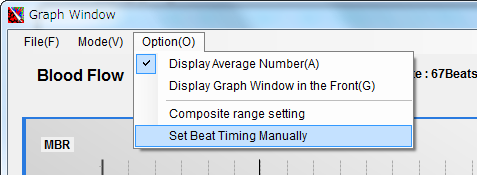
5. The graph window will open. Click "Option" - "Set Beat Timing Manually" from the graph window menu.
5. The blood flow values of the rubber band will then be displayed as a bar graph in time series, and the minimum frames should be shown in green.
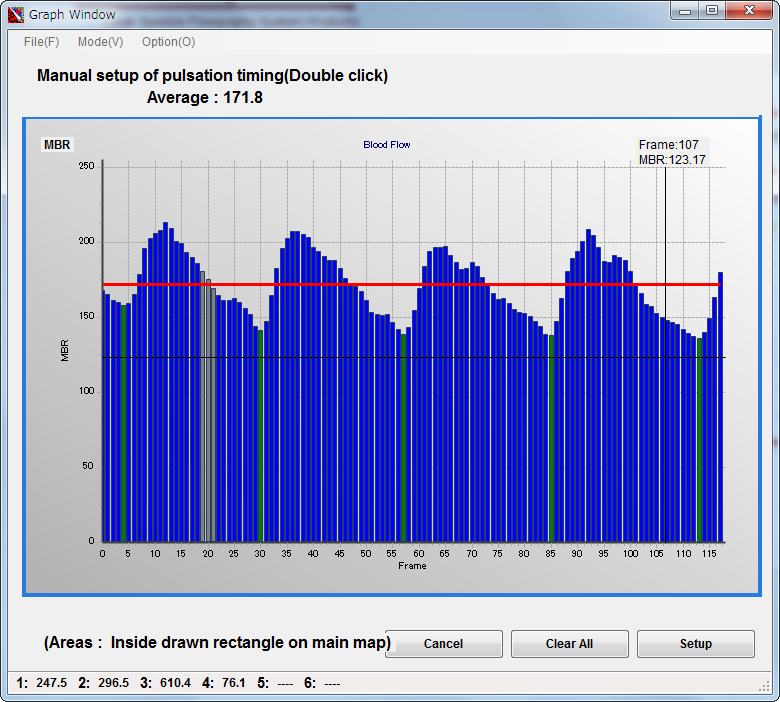
Gray frames are those set as error frames due to tracking errors, etc.
Double-click on a frame that you think is a minimum frame to turn it green.
To deselect a minimum frame, double-click it again to remove the setting.
If the bar graph is too fine to set easily, you can freely zoom in on the graph.
Drag the mouse from the upper left to the lower right over the area you want to enlarge.
To move the graph, right-drag.
To return to the original graph size, drag from the lower right to the upper left anywhere on the graph.
6. When the setting is complete, press the "Setup" button at the lower right of the graph window.
This will recreate the composite map based on the manually set frames.